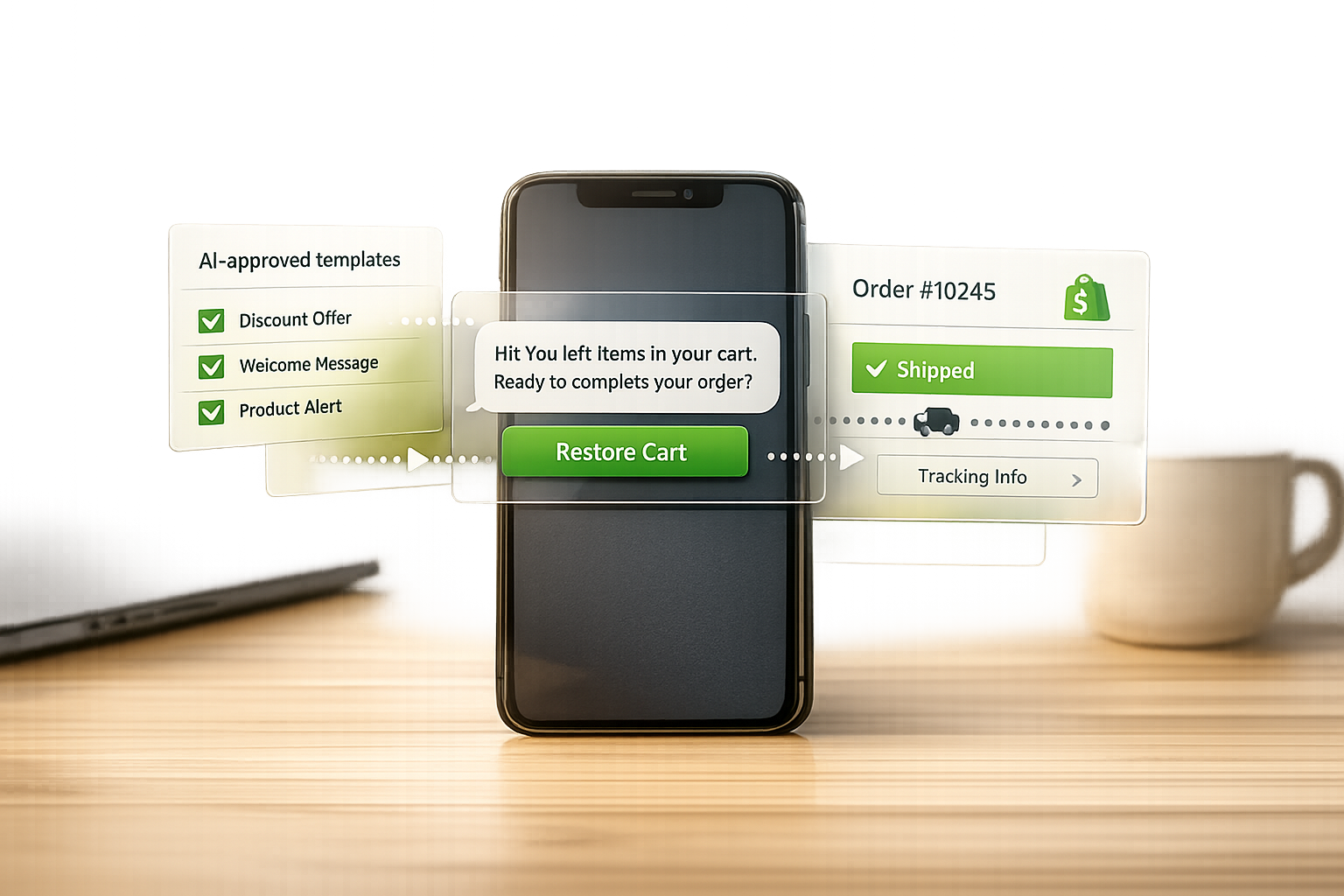
How to Automate WhatsApp Marketing for Shopify Stores
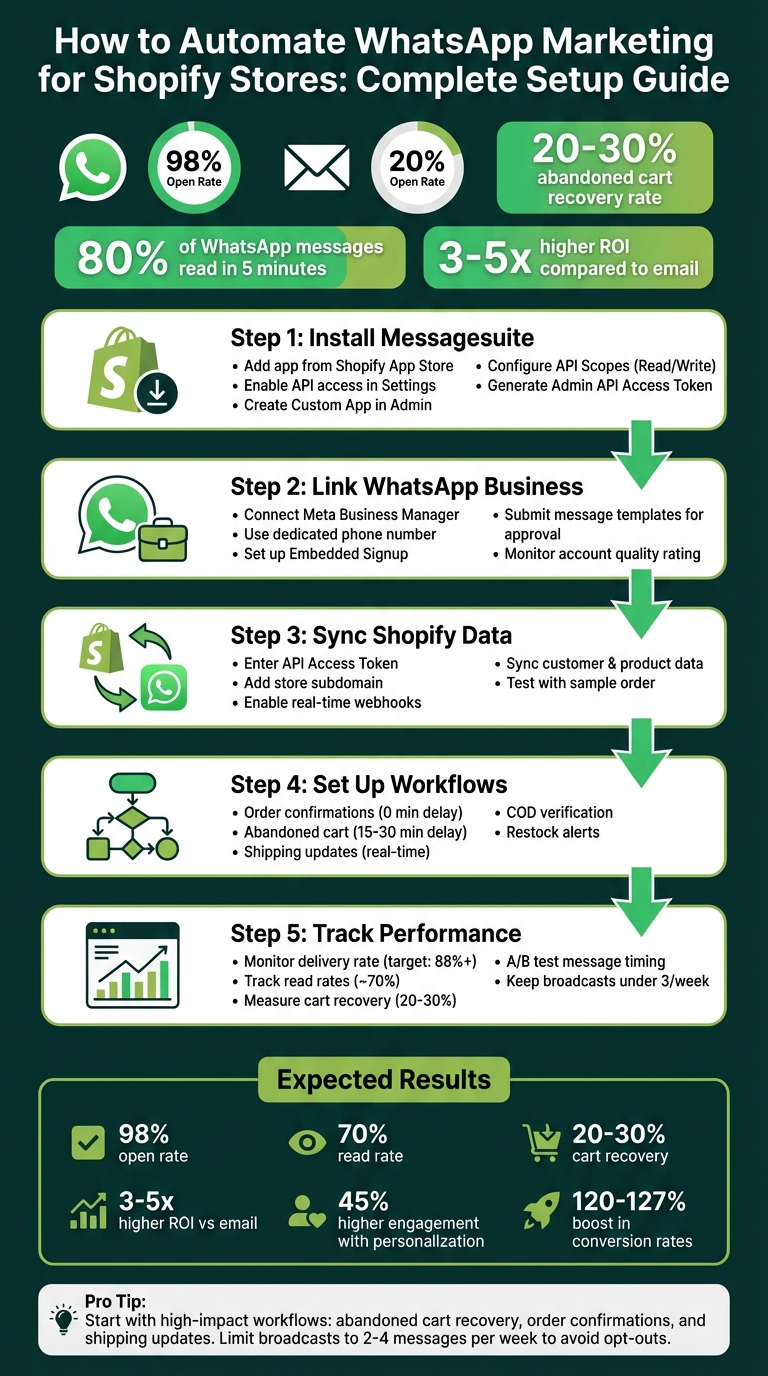
Running a Shopify store means managing endless customer interactions - order updates, cart reminders, and more. Email open rates average just 20%, but WhatsApp boasts a 98% open rate and 80% of messages are read in 5 minutes. Automating WhatsApp for your Shopify store can save time, reduce support tickets, and recover lost sales.
Here’s how to get started:
- Install Messagesuite: Add the app from Shopify, enable API access, and securely connect your store.
- Link WhatsApp Business: Use Meta’s API for verified accounts, set up message templates for order updates, cart recovery, and promotions.
- Sync Shopify Data: Automatically pull customer and product data to personalize messages.
- Set Up Workflows: Automate triggers like order confirmations or abandoned cart reminders to boost engagement.
- Track Performance: Monitor delivery, read rates, and conversions to refine campaigns.
With WhatsApp automation, stores recover 20-30% of abandoned carts and achieve 3-5x higher ROI compared to email. Focus on workflows like order confirmations and shipping updates first, then expand into personalized promotions.
Pro Tip: Test message timing and templates to optimize engagement while keeping broadcasts under 3 per week to avoid opt-outs.
How to Set Up WhatsApp Automation for Shopify: 5-Step Implementation Guide
How to Set Up Messagesuite for WhatsApp
Getting Messagesuite up and running involves three straightforward steps: installing the app from Shopify, connecting your WhatsApp Business Account, and syncing your store data. Before starting, make sure you have admin access to your Shopify store and a verified Meta Business Manager account.
Installing Messagesuite from the Shopify App Store
Begin by heading to the Shopify App Store and searching for Messagesuite. Once you locate it, click "Add app" to start the installation process. The app will request permissions to access your store’s data - like orders, customers, and products - since these are essential for features like abandoned cart recovery and order status updates.
After installation, you’ll need to create a Custom App in your Shopify Admin. Navigate to Settings > Apps and sales channels > Develop apps, and enable "Custom App Development." This step establishes a secure connection between your Shopify store and Messagesuite. Next, configure API Scopes for Orders, Customers, and Products, ensuring both "Read" and "Write" permissions are enabled.
Generate your Admin API Access Token (it’s displayed only once, so store it securely), and note your store's subdomain (e.g., "mystore" from "mystore.myshopify.com").
Connecting Your WhatsApp Business Account
Once the Shopify app is installed, the next step is linking your WhatsApp Business Account. You’ll need a Meta Business Manager account that’s fully verified. This unlocks higher messaging tiers and official features, and you’ll also need a dedicated phone number that’s not already linked to a personal or standard WhatsApp Business App.
Messagesuite simplifies this process using an Embedded Signup feature provided by Meta. Through the app dashboard, you’ll be guided to connect your phone number and set up your business profile. With the WhatsApp Business API, you can manage conversations from a single dashboard, even allowing multiple team members to interact with customers. It also supports automated chatbots to streamline responses.
After connecting, you’ll need to submit message templates to Meta for approval. These templates are required for sending automated messages like order confirmations or shipping updates. Ensure your templates comply with Meta’s policies to avoid delays. Keep an eye on your account quality rating in the Meta dashboard and adjust your broadcast frequency if needed to prevent suspension.
Syncing Shopify Data with Messagesuite
The final step is syncing your Shopify store data with Messagesuite. Enter your Admin API Access Token and store subdomain into the Messagesuite dashboard. This integration enables real-time data flow via webhooks, linking customer and product data directly to your WhatsApp templates.
Synced data includes customer names, phone numbers, order IDs, and even product images. These details are used as dynamic variables in your automated WhatsApp messages. For example, when a new order is placed, a personalized confirmation message is sent automatically. Advanced integrations even allow for two-way syncing, so customer responses on WhatsApp - like a cancellation request - can update the order status in Shopify.
To confirm everything is functioning properly, place a test order in your Shopify store. This will trigger a webhook and send a WhatsApp notification, ensuring the setup is complete.
sbb-itb-e5ef79e
Creating AI-Powered WhatsApp Message Templates
Once your Shopify data is synced, the next step is crafting message templates that align with WhatsApp's strict Business API guidelines. Messagesuite's AI simplifies this process by automatically structuring templates to meet Meta's requirements. This not only saves time but also minimizes the chances of rejection due to formatting issues.
Generating Pre-Approved Templates with AI
WhatsApp mandates that all automated messages use pre-approved templates, which fall into three categories: Marketing, Utility, or Authentication. Here’s a quick breakdown:
- Marketing templates: Think promotional messages like discounts or abandoned cart reminders.
- Utility templates: These include transactional updates such as order confirmations and shipping notifications.
- Authentication templates: Used for one-time passwords and login verification.
Messagesuite's AI handles the categorization and formatting of these templates, ensuring compliance with WhatsApp's guidelines. It automates the setup of headers (text or media), body content, footers, and interactive buttons. Dynamic placeholders like {{first_name}} or {{order_id}} are seamlessly integrated with Shopify data.
Templates go through several statuses during approval: In-Review (takes up to 24 hours), Approved (ready for use), Rejected (violates policies), or Paused (due to low quality or negative feedback).
"Say goodbye to mixed messages! Templates ensure every chat holds the same professional vibe." - WATI
Verified businesses can create up to 6,000 templates per account, while unverified accounts are limited to 250. Additionally, there’s a limit of 100 new templates per hour. To maintain a High Quality rating and avoid pauses, the AI helps draft content that’s professional and avoids spam-like language, reducing the likelihood of negative feedback. Once generated, these templates can be tailored to fit specific customer scenarios.
Customizing Templates for Different Scenarios
Messagesuite allows you to personalize AI-generated templates for various customer interactions by mapping Shopify data fields directly into your messages. For instance:
- Abandoned cart reminders: Add a product image, a discount code, and a "Complete Purchase" button that links directly to checkout.
- Order confirmations: Include a summary of the order, a "Track Order" link, and consider upselling related items. For example, Basic Life boosted upsell performance by over 10% in 2023 by adding "Explore products" buttons to their order confirmation messages.
- Shipping updates: Provide the tracking number and a "Track Order" button that links to the carrier's website.
- Feedback requests: After delivery, send a quick-reply option like "Loved it!" or "Disliked it" to gather reviews instantly.
- Restock alerts: Create urgency by including a "Buy Now" button and a warning about limited stock.
For promotional templates, always include an unsubscribe option, such as "Reply STOP to unsubscribe", to maintain high quality ratings and reduce negative feedback.
Fine-tuning these templates can improve customer engagement and drive sales, strengthening your overall marketing strategy.
Tagging Templates for Automated Triggers
Once your templates are customized, the next step is setting them to trigger automatically based on specific Shopify actions. Messagesuite organizes this through Campaigns, where you link approved templates to actions like Order Notifications, Abandoned Cart Recovery, or COD Verification.
During campaign setup, you’ll assign Labels and Sequences via dropdown menus. These tools automatically tag or segment customers when a trigger is activated. To enhance engagement, you can set delays - 0 minutes for transactional updates and 2–5 minutes for abandoned cart alerts.
Campaigns can also be segmented by product category or store section for more targeted communication. Including clickable buttons like "Track Order" or "Complete Purchase" in your templates reduces friction and guides customers to take the next step.
Building Automation Workflows in Messagesuite
Once your templates are tagged and ready to go, you can start creating workflows that automatically respond to customer actions. Messagesuite integrates directly with your Shopify store's event system, turning events like orders, abandoned carts, or fulfillment updates into instant, personalized WhatsApp messages. This is made possible through webhooks - real-time tools that send data from Shopify to WhatsApp the moment an event occurs.
Setting Up Trigger-Based Workflows
Using your connected templates, you can configure workflows that turn Shopify events into timely WhatsApp communications. The process begins by choosing a Shopify event to act as the trigger for your message. Popular triggers include Order Creation for confirmations, Checkout Abandonment for recovery reminders, and Order Fulfillment for shipping updates. To make this work, ensure your Shopify webhooks are properly set up to activate these events.
Timing is everything. For example, you can set a delay of 0 minutes for order confirmations to ensure immediate communication. For abandoned cart recovery, a delay of 15–30 minutes often works best, as it typically helps recover 20–30% of lost carts. If you're building a multi-step recovery sequence, you might schedule a reminder after 1 hour, follow up with a discount offer after 3 days, and send a final "last chance" message after 7 days. Start with high-impact workflows like abandoned cart recovery, order confirmations, and shipping updates to quickly see results.
Using AI-Driven Customer Segmentation
Messagesuite’s AI goes beyond basic personalization by tagging and segmenting customers based on factors like behavior, purchase history, location, and product preferences. This means your messages can reference specific products a customer viewed or purchased, making them more relevant. For instance, if someone shows interest in "skincare for sensitive skin", the platform can suggest curated product options, reducing abandoned carts by up to 30%.
The platform also tracks customer entry points, such as QR codes or Click-to-WhatsApp ads, enabling location-specific workflows. You can design lifecycle-based workflows, like welcome messages for new subscribers, re-engagement campaigns for inactive users, and loyalty rewards for top-tier customers. Businesses using WhatsApp for customer support often see a 120–127% boost in engagement and conversion rates, with prospects assisted via chat being 2.8 times more likely to make a purchase.
Connecting Shopify Events for Real-Time Updates
After defining your customer segments, make sure real-time data flows seamlessly into your workflows. With the API integration completed during your Messagesuite setup, you can map Shopify data fields (like customer.phone or order.id) directly to your WhatsApp template variables. Shopify remains your main data source, while Messagesuite manages the automation and message delivery.
Key events to connect include Order Creation, Order Fulfillment, Abandoned Checkout, and Customer Creation. Shopify supports over 50 webhooks for different events, giving you the flexibility to automate nearly every type of customer interaction.
Launching and Optimizing WhatsApp Campaigns
Scheduling and Sending WhatsApp Broadcasts
Start by choosing a pre-approved template from your library. These templates are already approved by Meta and often include dynamic variables like {{customer_name}} or {{product_name}} to personalize your messages. Next, refine your audience using Shopify data - this could include purchase history, location, or specific tags like "Abandoned Cart" - to ensure your messages reach the right people.
For scheduling, stick to your local time zone and aim for peak engagement windows, such as 10:00 AM–12:00 PM or 6:00–8:00 PM. These times can increase click-through rates by up to 25%. Always send a test message beforehand to confirm that dynamic fields and media display correctly. Note that new WhatsApp Business API accounts have a limit of 1,000 unique recipients per 24 hours.
To keep your audience engaged and reduce opt-outs, limit broadcasts to a maximum of three times per week. Include a clear opt-out option, such as "Reply STOP to Unsubscribe", in every message to comply with WhatsApp policies. Make sure to attach UTM parameters to all links so you can track revenue and conversions in Google Analytics. WhatsApp campaigns generally achieve impressive read rates of about 70%, and personalized messages tend to drive 45% higher engagement compared to generic ones.
Once your broadcasts are scheduled, monitor their performance closely to refine your approach over time.
Tracking Campaign Performance with Analytics
After your campaigns go live, use real-time analytics to measure their success. Automation doesn’t stop at sending messages - tracking performance is key to ensuring your strategy delivers results.
The Messagesuite reporting dashboard provides real-time data on campaign performance. Focus on core metrics like delivery rate (aim for 88% or higher), read rate, and click-through rate to measure how well your audience is engaging with your messages. You can also track outcomes like order confirmations, cart recovery rates (which typically fall between 20–30%), and total revenue generated from each campaign. The dashboard breaks down details such as how many messages were sent, delivered, read, or skipped.
Keep an eye on block and spam rates, which should stay below 1% to avoid account penalties. If messages are skipped in your workflows, it could signal issues like incorrect API credentials or insufficient message credits. Use segmentation analysis to compare how different customer groups - like high-value buyers versus new leads - respond to your campaigns. With around 80% of WhatsApp messages being read within the first five minutes, you can expect to see results quickly.
Improving Campaigns with A/B Testing
Fine-tune your campaigns by experimenting with different message templates, delivery times, and audience segments before scaling up. Divide your audience into smaller test groups based on criteria like purchase history, browsing habits, or where they are in the customer lifecycle. Try out variables such as message length (keeping it under 160 characters), the mix of promotional versus educational content, and the use of rich media like product images or carousels. Testing non-traditional sending times can also help your messages stand out in crowded inboxes.
You can also test varying delay intervals - such as 1 hour versus 24 hours - to see which timing drives better conversions. Always use UTM parameters on your links to track completed checkouts and revenue per variant in Google Analytics. During testing, monitor quality scores carefully. If a variant leads to high block rates, pause it immediately to protect your account’s ability to send messages. Even while testing, stick to sending no more than 2–4 marketing messages per week to keep opt-out rates low.
Conclusion
Automating WhatsApp marketing for your Shopify store can help recover lost revenue, reduce customer support burdens, and connect with customers instantly. With WhatsApp's impressive engagement rates, this channel consistently outshines email in terms of effectiveness.
To get started, prioritize strategies with the greatest impact. For example, setting up abandoned cart recovery can reclaim up to 40% of lost checkouts. Next, implement workflows like order confirmations, shipping updates, and COD verification. These not only enhance customer experience but also significantly reduce support tickets and return-to-origin rates. Once these essential processes are in place, you can expand into personalized broadcasts. Use AI-powered segmentation to send tailored promotions and back-in-stock alerts that resonate with specific customer groups.
"WhatsApp has been a game-changer for our store. The automated order confirmations and fulfillment updates via WhatsApp are flawless, drastically cutting down on our customer service queries and operational load." - ZynaMall, Merchant
To fine-tune your campaigns, leverage real-time analytics and AI-driven segmentation tools. Regularly monitor performance metrics and apply A/B testing to optimize message timing, template designs, and audience targeting. This approach will help you pinpoint the elements that drive the best results. Aim for a broadcast frequency of 2–4 messages per week to maintain customer interest without causing opt-outs.
With a solid automation framework in place, consider starting with Messagesuite. Sync your Shopify data, set up your workflows, and take the first step toward increasing customer engagement and boosting sales.
FAQs
Do I need WhatsApp Business API to automate messages?
Yes, the WhatsApp Business API is essential for automating messages efficiently. It supports features such as automated order updates, abandoned cart reminders, and personalized customer communication. By integrating with Shopify, the API allows you to create workflows for notifications and targeted messages, helping boost both customer engagement and sales.
What Shopify data can I personalize WhatsApp messages with?
You can make WhatsApp messages more personal by leveraging Shopify data like customer details, order specifics, and product information. Using dynamic tags in the 'Composer' tab, you can easily insert personalized elements such as the customer's name, their order number, or details about the products they purchased. Additionally, automation tools allow you to send customized messages automatically for specific actions, like confirming an order, providing shipping updates, or reminding customers about abandoned carts. This ensures your messages feel tailored and relevant to each individual.
How do I avoid WhatsApp opt-outs or account issues?
To avoid opt-outs or potential account problems, it's crucial to ensure customers clearly opt in to receive messages and that you stick to WhatsApp's rules. Never send spam or unsolicited messages - this can damage trust and lead to compliance issues.
Instead, use approved opt-in strategies like lead magnets, QR codes, or popups to gain permission. Keep an eye on how often you send messages, make them personal, and always respect customer preferences by providing a simple way to opt out. These steps not only help you stay compliant but also strengthen trust and boost engagement with your audience.